Koda help

Answers to your questions about Koda on Mac, iPhone and iPad

🔍

No articles matched your search. Try different keywords or contact support.

Getting started

Installing Koda

Koda is on the App Store for Mac, iPhone and iPad.

  • Mac: macOS 14 or later on a Mac with Apple silicon.
  • iPhone: iOS 17 or later.
  • iPad: iPadOS 17 or later.

Open the App Store on each device, search for Koda or follow the link on toz.red/en/koda, and download it. Use the same Apple Account on all your devices so that your library and Koda Pro are available everywhere.
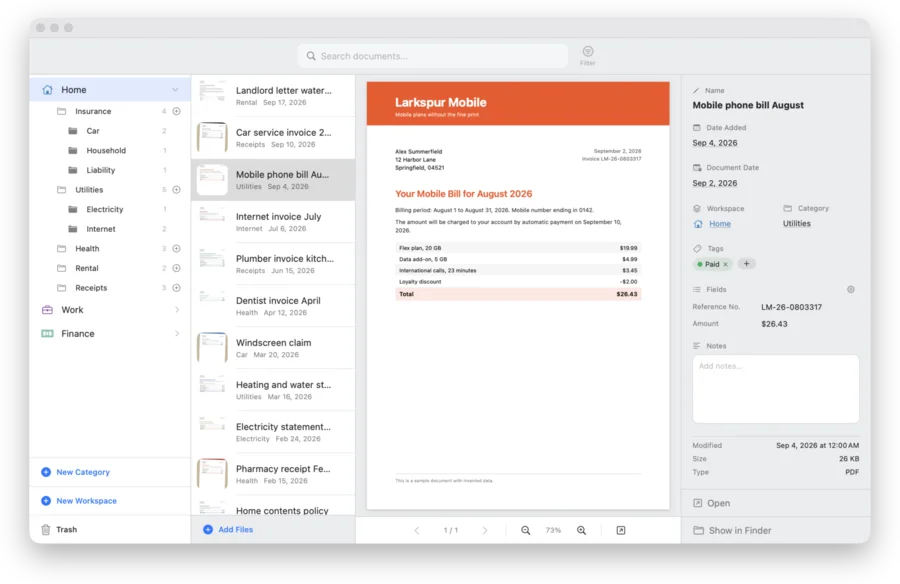
A workspace is the top level of your library, for example Home, Work or Finance. Inside a workspace you sort documents into categories and sub-categories.

  • Mac: click New Workspace at the bottom of the sidebar, type a name, add an emoji as its icon if you like, and click Create. Then click New Category.
  • iPhone and iPad: open the Workspaces tab and tap New Workspace. Open the workspace and tap Add Category.

If you already use Koda on another device, wait for your workspaces to appear before you create new ones. The first sync can take a few minutes.

Koda on the Mac: the Home workspace with its categories on the left, the document list, a preview and the details on the right

Koda is free to download. The free version is a trial with room for a small library:

  • 1 workspace
  • 4 categories
  • 2 sub-categories per category
  • 100 documents (documents in the Trash do not count)

iCloud sync, search with text recognition and the scanner on iPhone and iPad are part of the free version.

When the library is full, Koda shows The free version holds up to 100 documents and offers Upgrade. Koda Pro removes the limits. See Koda Pro.

Workspaces & categories

Every category shows how many documents it holds, including the documents in its sub-categories.

  • Mac: New Workspace and New Category are at the bottom of the sidebar. To add a sub-category, click the plus button next to a category, or right-click the category and choose Add Sub-category.
  • iPhone and iPad: open a workspace and tap Add Category. The folder button next to a category adds a sub-category, the pencil renames it.
  • Rename (Mac): right-click a workspace or category and choose Rename….
  • Delete (Mac): right-click and choose Delete Category or Delete Workspace. When you delete a category without ticking Also delete files from disk, its documents stay in the workspace and only lose their category.
  • iPhone and iPad: touch and hold a workspace or category for Rename, Delete Workspace or Delete Category.
  • Mac: select the document. In the details on the right, click Workspace or Category and pick the new place.
  • iPhone and iPad: open the document, tap the info button and choose the new workspace or category under Organization.

Koda moves the file into the matching folder, so the folder structure in iCloud Drive always mirrors your workspaces and categories.

Every document can carry tags, a document date and a note. A workspace can also have fields of its own, such as Invoice Number, Client or Due Date.

  • Use Filter (Mac) or Filters (iPhone and iPad) to narrow a list by Tags, File Type or Date Range. Clear All Filters shows everything again.
  • Custom fields are shown with each document. They are not part of search or filters.

Adding documents on the Mac

  • Drag files or whole folders from Finder onto the Koda window, or click Add Files (⌘N).
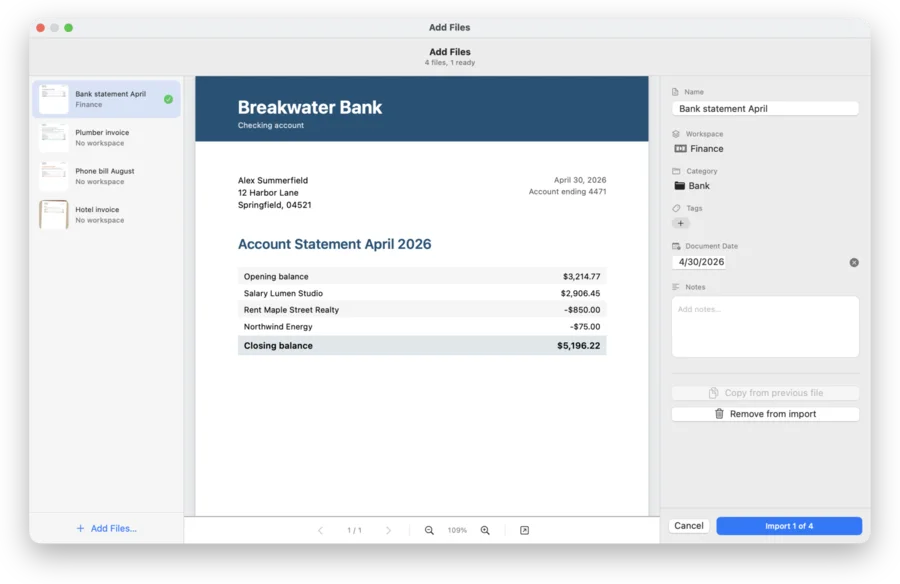
  • The Add Files window opens. For each file, set the name, workspace, category, tags, document date and notes. Copy from previous file takes over the values of the file before.
  • Several PDFs can be merged into one, and you can put the pages in order before you import.
  • Click Import to file the documents.
Add Files window: four files in the list, a bank statement in the preview, and name, workspace, category, tags and document date on the right
  • Preview: PDFs, photos, text and Office documents are shown right in the window.
  • Search inside the document: PDFs, text files and Word documents. Scanned PDFs are read with text recognition.
  • Photos and other image files are found by name, tags and notes, not by the text in the picture.

Koda stores documents as normal files in clearly named folders in iCloud Drive. Select a document and click Show in Finder to see the file. On iPhone and iPad you find the same folders in the Files app.

On the Mac you can use a folder of your own instead: Koda > Settings… > Storage Location > Choose Folder. A folder outside iCloud Drive is not available in Koda on iPhone and iPad. Reset to Default moves everything back to iCloud Drive.

iPhone & iPad

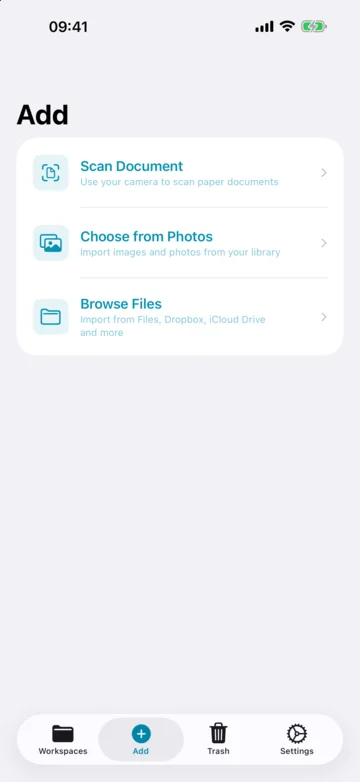
  • Open the Add tab and tap Scan Document.
  • Hold the device over the page. Scan as many pages as the letter has; they become one PDF.
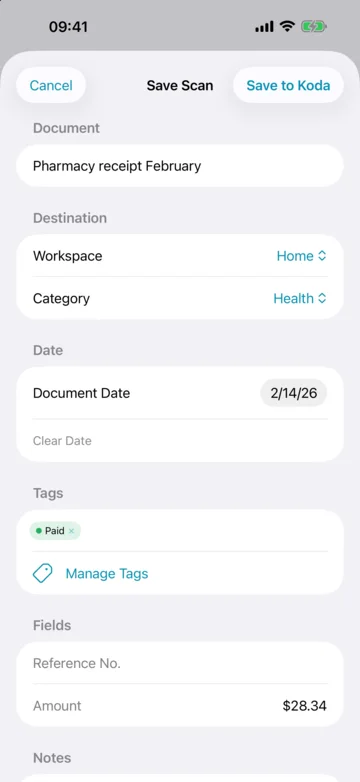
  • In Save Scan, type a name, choose Workspace and Category under Destination, and add a document date, tags and notes if you like.
  • Tap Save to Koda.

Koda asks for camera access the first time. The camera is used only for scanning. The text of the scan is recognised on your device, so the scan can be found by its content.

iPhone, Save Scan form with name, workspace, category, document date and tags
  • Photos: open the Add tab and tap Choose from Photos. Koda receives only the pictures you pick.
  • Files: open the Add tab and tap Browse Files. You can pick documents from the Files app, iCloud Drive and other storage apps.
  • Choose the Destination, add a date, tags and notes if you like, and tap Import.
iPhone, Add tab with the entries Scan Document, Choose from Photos and Browse Files

On iPad, your workspaces and categories sit in a sidebar next to your documents. Everything else works as on iPhone: the tabs are Workspaces, Add, Trash and Settings.

Documents you move to the Trash stay there until you empty it or delete them permanently.

  • iPhone and iPad: open the Trash tab. Restore puts a document back, Delete Permanently removes it, Empty Trash removes all of them.
  • Mac: click Trash at the bottom of the sidebar.

Koda speaks English and German. On iPhone and iPad, open Settings > Language; on the Mac, open Koda > Settings…. After changing the language, close and reopen Koda.

Search & text recognition

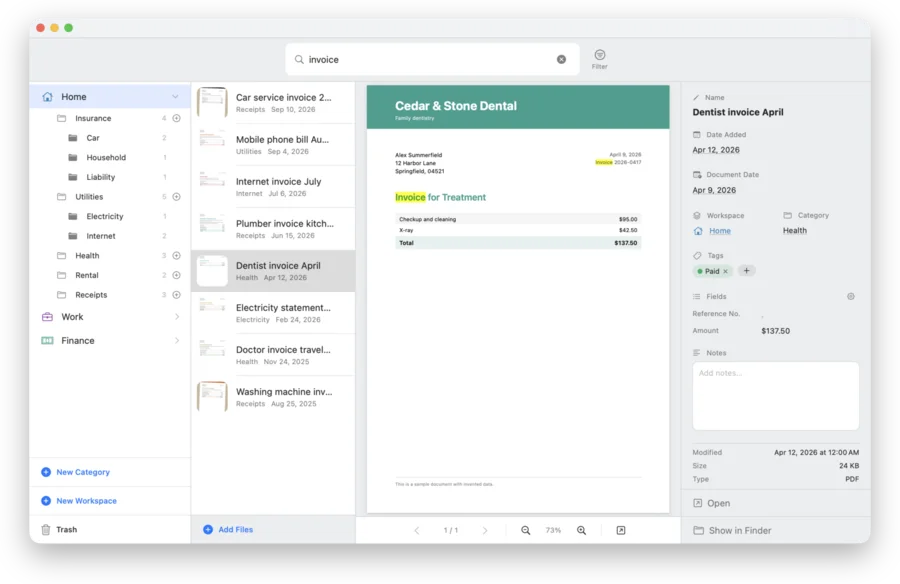
  • Mac: type into Search documents… at the top of the window. Matches are highlighted in the preview.
  • iPhone and iPad: tap the magnifying glass and type. Koda searches names, notes and document content.
A search for invoice in Koda: the list of matches and the highlighted word in the open dentist invoice

A scanned PDF contains pictures of pages, not text. Koda recognises the text (OCR) so that a scanned letter is as searchable as a typed one.

  • Text recognition runs by itself. You do not have to start it.
  • It runs on your device. Nothing is sent to a server.
  • A sharp, evenly lit scan gives the best result.

iCloud sync

Koda syncs through your own iCloud account. There is no account with us and no switch to turn on: sign in to iCloud with the same Apple Account on every device and keep iCloud Drive enabled.

  • Your documents are files in iCloud Drive. Names, tags, dates and notes travel through your private iCloud database.
  • toz.red has no access to either.
  • On a new device the first sync can take a few minutes. On iPhone and iPad, Settings > Storage shows iCloud Sync: Active.
  • Internet: iCloud needs a connection to pass changes on.
  • iCloud storage: check that your iCloud storage is not full.
  • iCloud Drive: it has to be enabled on every device, with the same Apple Account.
  • Custom folder on the Mac: if the Mac stores documents in a folder outside iCloud Drive, iPhone and iPad cannot see them. Open Koda > Settings… > Storage Location on the Mac and choose Reset to Default.
  • Wait, then reopen: large changes take a few minutes. Close Koda and open it again.

If nothing helps, see Resetting iCloud sync.

Use this only when sync is stuck and nothing else helped. Koda's sync data in iCloud is deleted and then uploaded again from your devices, which can take a while. Documents on the device are not deleted.

  • Close Koda on your other devices first.
  • iPhone and iPad: open Settings, scroll to About, tap Reset iCloud Sync… and confirm with Reset. Then close Koda completely (swipe up from the bottom edge and flick the app away) and open it again.
  • Mac: choose Help > Reset iCloud Sync… and confirm. Koda quits. Open it again.

Koda Pro

  • Unlimited workspaces, categories, sub-categories and documents
  • AI integrations on the Mac
  • Siri and Shortcuts

Koda Pro is a one-time purchase, not a subscription. One purchase covers Mac, iPhone and iPad, and Family Sharing is included. The App Store shows the price.

  • iPhone and iPad: open Settings, tap Upgrade to Koda Pro under Account, then tap Get Koda Pro.
  • Mac: open Koda > Settings…, click Upgrade, then Upgrade to Pro.

The payment is handled by Apple through your Apple Account. We never see your payment details.

You pay for Koda Pro once. To unlock it on another device, or after reinstalling, restore the purchase with the same Apple Account:

  • iPhone and iPad: Settings > Account > Restore Purchases.
  • Mac: Koda > Restore Purchase….

Members of your Family Sharing group restore it the same way on their devices.

AI integrations (Mac)

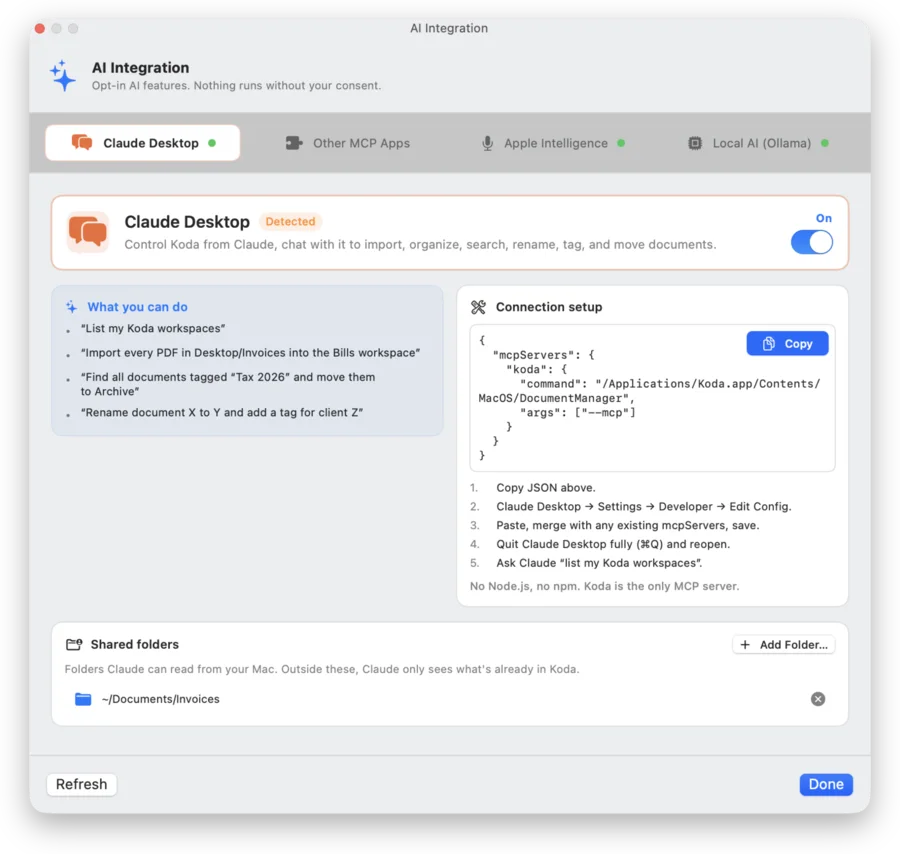
The AI integrations are part of Koda Pro and run on the Mac. Choose AI > AI Integration… (⌥⌘A). The window has four tabs: Claude Desktop, Other MCP Apps, Apple Intelligence and Local AI (Ollama).

  • Every integration is off until you switch it on and confirm with Enable.
  • Koda runs a local server for the Model Context Protocol (MCP) on your Mac. Koda itself sends nothing to the internet.
  • AI > Check Connection tests the setup.
AI Integration window with the tabs Claude Desktop, Other MCP Apps, Apple Intelligence and Local AI (Ollama)
  • In the Claude Desktop tab, switch the integration on and confirm with Enable. Koda asks you to share a folder so that Claude can import files from your Mac.
  • Under Connection setup, click Copy.
  • In Claude Desktop, open Settings > Developer > Edit Config. Paste, merge with any existing mcpServers entry, and save.
  • Quit Claude Desktop completely (⌘Q) and open it again.
  • Ask Claude to list my Koda workspaces.

You do not need Node.js or npm. Under Shared folders, Add Folder… lets Claude read further folders on your Mac. Outside these folders, Claude only sees what is already in Koda.

Any app that can start a local MCP server can use Koda. Open the Other MCP Apps tab, switch it on and confirm with Enable.

  • Claude Code: copy the command shown in the tab and run it once in Terminal.
  • Cursor: add the JSON shown in the tab to ~/.cursor/mcp.json.
  • LM Studio: open the Program tab, choose Install, then Edit mcp.json, and add the JSON.
  • VS Code: run MCP: Open User Configuration and add the JSON, but name the top-level key servers instead of mcpServers.
  • Restart the app and ask it to list my Koda workspaces.

Apps that only connect to servers on the internet cannot be used: Koda's server runs only on your Mac.

With Ollama, a model running on your Mac suggests a name, workspace, category and note when you import. Nothing is sent to the cloud.

  • Install Ollama from ollama.com/download.
  • In Terminal, run ollama pull llama3.2.
  • Ollama runs in the background and Koda detects it.
  • In the Local AI (Ollama) tab, switch it on, pick a model under Model & Features, and turn on Auto-suggest category on import and Smart document naming as you like.

Siri and Shortcuts are part of Koda Pro.

  • Mac: open AI > AI Integration…, choose the Apple Intelligence tab and switch it on. In the Shortcuts app you then find the actions Open Koda, Search Koda and Import File to Koda.
  • iPhone and iPad: open Koda or search your documents from Siri or your own shortcuts.
  • Every integration is off by default and needs your explicit consent.
  • A connected app works with your Koda library. It can read other folders on your Mac only if you share them.
  • Ollama suggestions, search and text recognition run entirely on your Mac.
  • If you connect an AI app that uses a cloud service, the documents you ask it to work with are processed by that app's provider, under that provider's terms. The connected app, not Koda, decides what it sends.

More in the privacy policy.

Troubleshooting

  • Report an Issue… prepares an email to us.
  • Get Help Online… opens this help center.
  • Reset iCloud Sync… is the repair tool for a stuck sync. See Resetting iCloud sync.
  • Terms of Use (EULA) and Privacy Policy open the legal texts.

On iPhone and iPad you find the same entries under Settings > About.

  • Check the system version: the Mac needs macOS 14 or later and Apple silicon; iPhone and iPad need iOS 17 or iPadOS 17 or later.
  • Quit and reopen: on the Mac press ⌥⌘Esc, select Koda, click Force Quit and open it again.
  • Restart the device.
  • Reinstall from the App Store. Your documents stay in iCloud Drive.

If none of this helps, contact support.

  • Look in All Documents: on iPhone and iPad, open the workspace and tap All Documents. The document may be in another category.
  • Search: type part of the name or a word from the document.
  • Check the Trash.
  • Give iCloud time: a file can still be on its way. Koda then shows File not yet downloaded from iCloud.
  • Look at the files: on the Mac select a document nearby and click Show in Finder; on iPhone and iPad open the Files app.
  • Mac: Help > Report an Issue…
  • iPhone and iPad: Settings > About > Report an Issue
  • Koda prepares an email to info@toz.red in your own mail app. You see the whole message before you send it. With Include system information switched on it names your system version and device model. Location, photos and document contents are not included.
  • You can also write to info@toz.red directly.