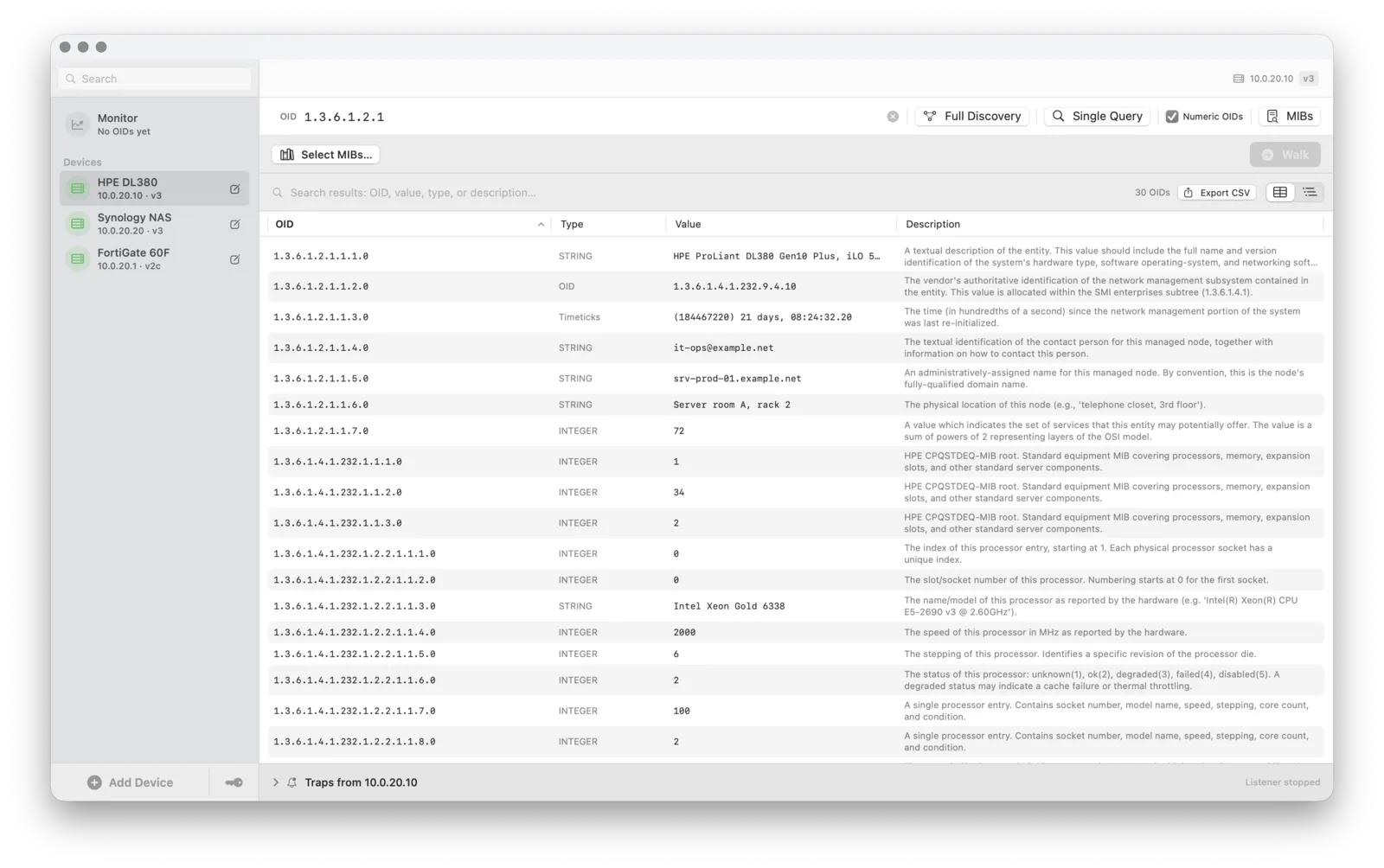
Adding monitored OIDs
+
Monitor is the first entry in the sidebar (Pro).
- Click Add OID, enter the OID and an optional name.
- Select one or several devices; each gets its own card.
- Choose the poll interval: 15 s, 30 s, 1 m, 5 m, 15 m, 30 m, 1 h, or a custom value.
You can also right-click a walk result and choose Add to Monitor.
Cards, sparklines and status
+
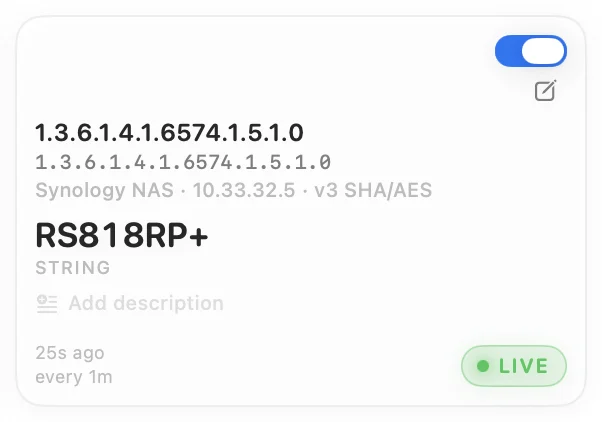
Each card shows the current value, its type, the time of the last poll and a sparkline of up to 200 samples. Samples are kept in memory and start fresh after a relaunch.
- Live: the last poll succeeded.
- Stale: one poll was missed. The reason is shown on the card.
- Error: two polls in a row failed. Hover the status for details.
Polls to one device are sent one after another, which keeps small agents in UPS units, PDUs and RAID controllers from dropping requests.
Start, stop and filter
+
Stop All and Start All control every card; the switch on a card controls just that one. Use the device menu at the top to show one device only.
Example: monitoring a Synology NAS
+
- In DSM 7, open Control Panel > Terminal & SNMP > SNMP, tick Enable SNMP service and either the SNMPv1, SNMPv2c service with a community, or the SNMPv3 service with a user and password. Click Apply.
- Download the Synology MIB pack from Synology's MIB guide (Synology_MIB_File.zip, 21 text files).
- In SNMP Explorer, click Add Device, enter the NAS address and the community or SNMPv3 user from DSM, then Test Connection.
- Open MIBs > Manage MIBs…, click Import MIB File… and select all 21 files. Each module brings its own root, so none needs a parent MIB.
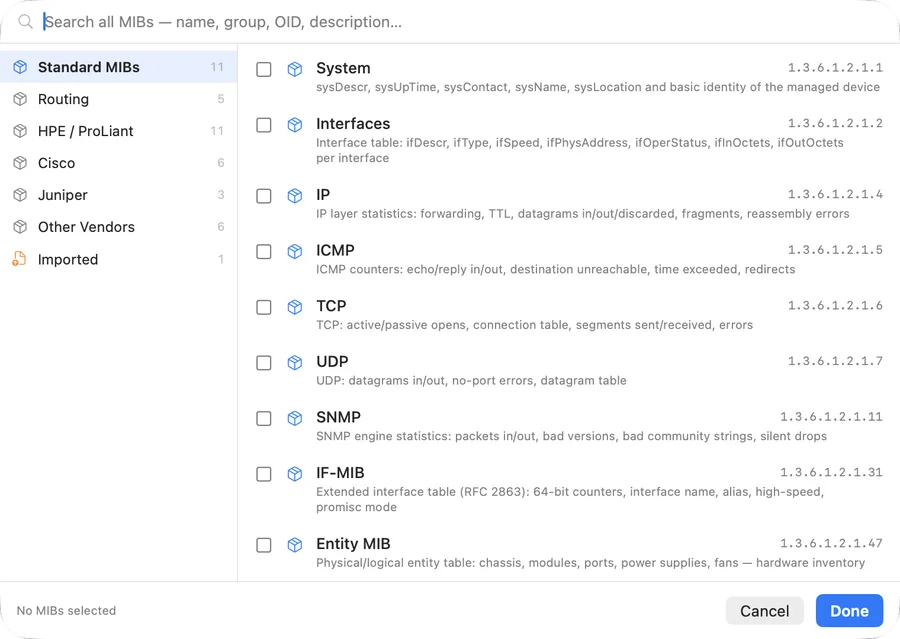
- Click Select MIBs…, tick synoSystem, synoDisk and synoRaid in the Imported group, then Walk.
- Right-click the rows you want and choose Add to Monitor. Each becomes a card polled every minute.
| Object | OID |
|---|
| temperature | 1.3.6.1.4.1.6574.1.2.0 |
| systemStatus | 1.3.6.1.4.1.6574.1.1.0 |
| diskTemperature | 1.3.6.1.4.1.6574.2.1.1.6.N |
| diskHealthStatus | 1.3.6.1.4.1.6574.2.1.1.13.N |
| raidStatus | 1.3.6.1.4.1.6574.3.1.1.3.N |
| raidFreeSize, raidTotalSize | 1.3.6.1.4.1.6574.3.1.1.4.N, .5.N |
N is the row index the walk shows. systemStatus is 1 for normal and 2 for failed; diskHealthStatus 1 normal, 2 warning, 3 critical, 4 failing; raidStatus 1 normal, 11 degraded, 12 crashed (other values are running tasks such as repair or scrubbing). DSM does not send SNMP traps, so polling is the only way to watch the NAS. Steps 4 to 6 use Pro features.